Ares CNX User Guide
Operational reference for CM, kitting, support, and license administrators. Use this guide in the app or print it from the browser when a training packet is needed.
Overview
Ares CNX manages organizations, purchased licenses, devices, generated license files, and AppConfig versions.
Core Workflow
- Create or review an organization.
- Add purchased licenses for that organization.
- Create or assign devices.
- Create AppConfig versions from the organization page for the deployment scenario.
- Assign a purchased license and configuration to each device.
- Generate or download the device license file when the device is ready.
Dashboard Review
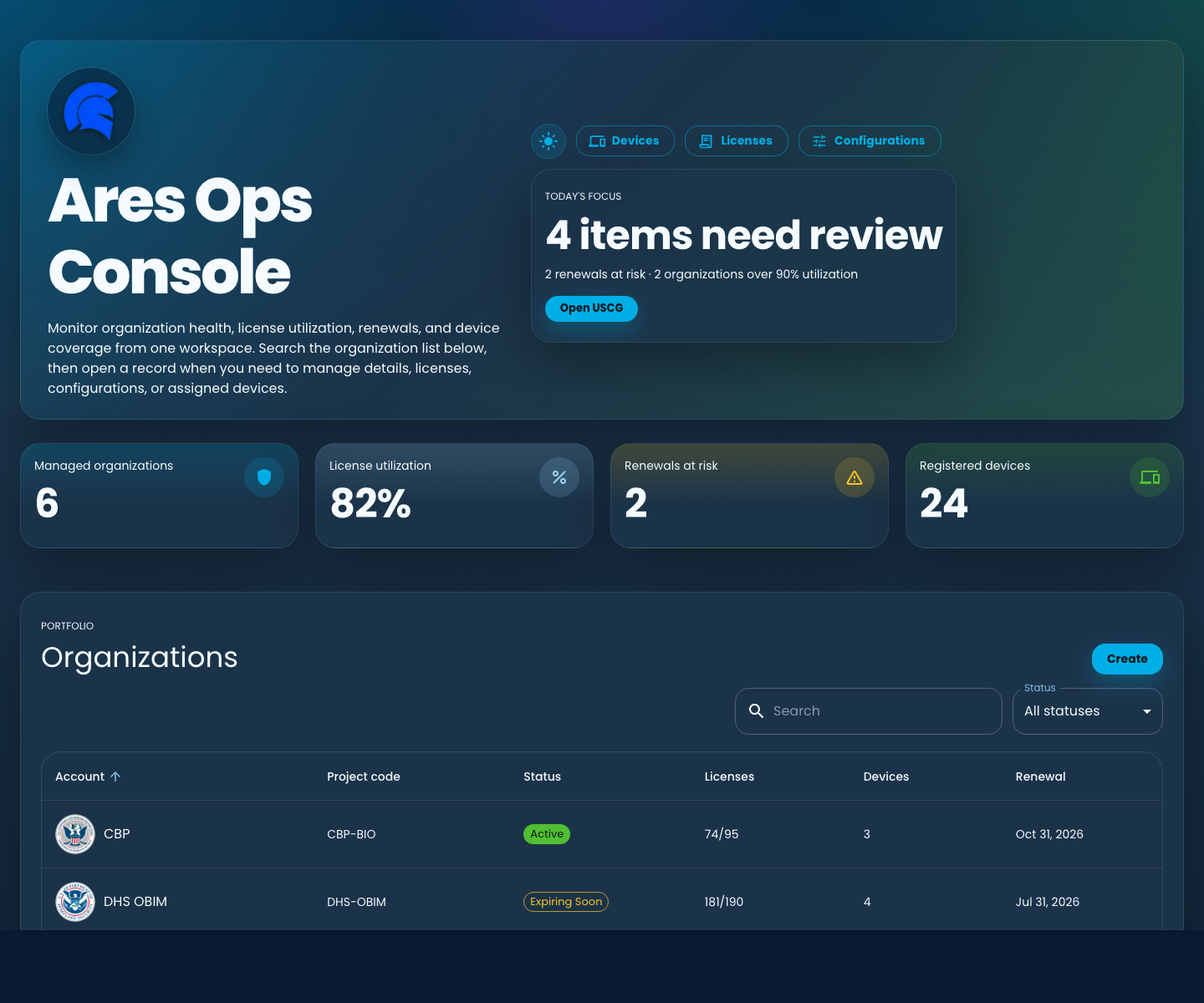
The dashboard summarizes license utilization, registered devices, configuration coverage, and Focus review items.
Use Focus First
- Review renewal risk, high utilization, and devices that still need generated licenses.
- Mark items as Under review when they are being handled.
- Dismiss items only when they no longer need attention.
- Open the related organization from the review item when follow-up is needed.
Organizations
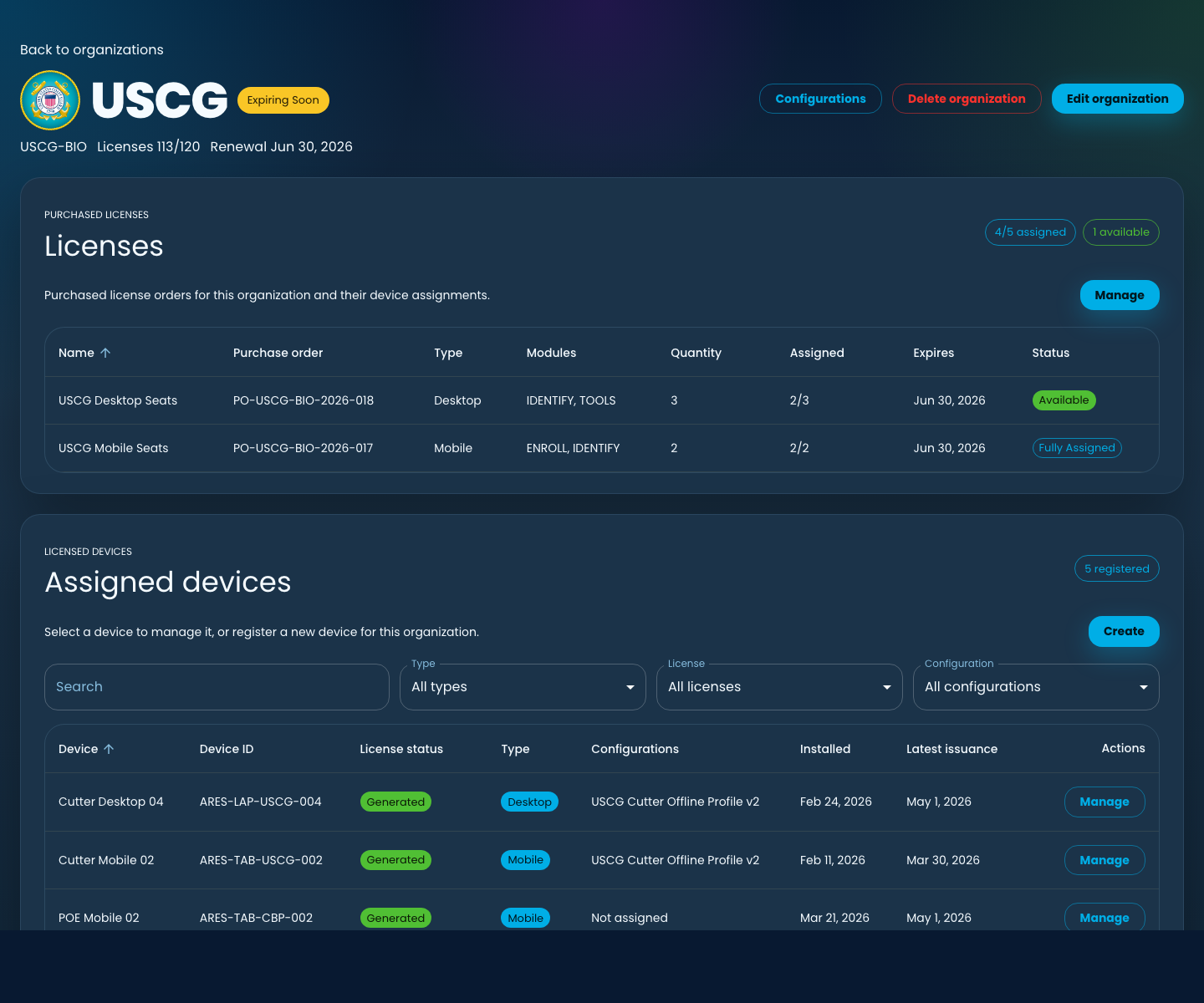
Organizations represent customer or operational programs. Open an organization to manage profile details, purchased licenses, devices, and configurations.
Organization Detail Includes
- Organization profile, contact, renewal, billing, notes, and image.
- Purchased licenses and current assignment counts.
- Assigned devices and license generation status.
- AppConfig records associated with the organization.
Organization Licenses
Purchased licenses are organization-owned entitlements from purchase orders. They are created and reviewed from the organization detail page, not from a separate portfolio page.
Required Fields
- License name and purchase order.
- License type: Desktop or Mobile.
- Quantity of purchased seats.
- Expiration date.
- At least one enabled module.
Assignment Rules
- Assigned devices cannot exceed purchased quantity.
- Assigned devices must match the purchased license type.
- A device must have a compatible purchased license before a device license file can be generated.
Devices
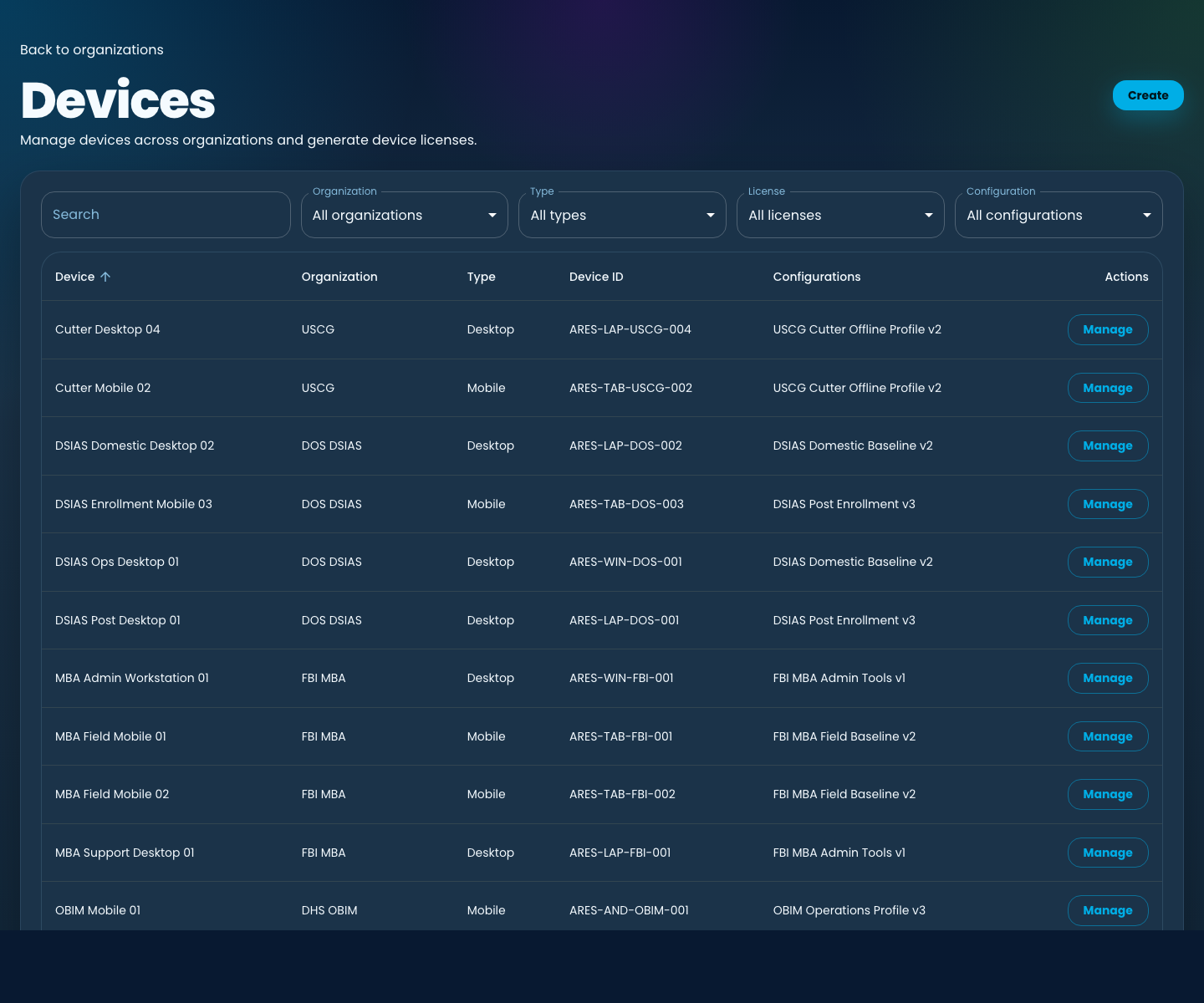
The Devices page is a read-only status view of devices assigned to organizations.
Register Or Manage A Device
- Open the organization that owns the device.
- Use Register Device to scan a QR from AresNXT and attach the device directly to that organization.
- Enter the device name and Device ID when available.
- Choose Desktop or Mobile.
- Associate a compatible purchased license.
- Assign one active configuration.
- Save the device before generating or downloading license files.
Manual Kitting Outputs
- Generated device license files show a QR code and Download .lic action.
- Assigned configurations show a QR code and Download .config action.
- Use Print from the manage device modal when CM or kitting teams need a paper activation/configuration sheet.
Generated Device License Files
Generated device license files are separate from purchased licenses. Purchased licenses track entitlement and modules; generated device license files are delivered to devices.
Before Generating
- The device must have a Device ID.
- A compatible purchased license must be assigned.
- The purchased license must have an expiration date.
- Modules are inherited from the assigned purchased license.
After Generation
- The generated file is stored in the device license history.
- Devices with a generated file show QR and Download .lic actions.
- Changing license assignment does not regenerate an existing device license file.
Organization Configurations
Configurations are AppConfig records created and managed from an organization detail page.
Configuration Builder
- Open an organization to create or edit generated AppConfig JSON from structured fields.
- Review generated JSON before saving.
- Use versioning for revised rollout settings instead of overwriting a working configuration.
- Unsupported existing fields are preserved when editing an existing payload.
Sharing And Assignment
- Open an organization to share configuration payloads.
- Assign one active configuration from the manage device workflow.
- Removing a device from an organization removes its configuration assignment.
Operating Practices
- Create or confirm the organization record before entering licenses, devices, or configurations.
- Create purchased licenses before assigning licenses to devices.
- Keep Device IDs accurate; they are required for generated license files and device activation.
- Use license names, purchase order values, and notes that match source purchase records.
- Keep configuration names and versions clear so users can select the correct AppConfig quickly.
- Delete devices only when they should be removed from the organization.
- Print modal QR sheets for kitting workflows instead of maintaining separate exported documents.